
The TextBox control
The TextBox control is commonly used to display column data of single-line-of-text or multi-line (Plain Text) columns.
If the TextBox control type is selected inside the control properties window, the “MultiLine” property is available allowing users to display multiple lines of text column data (the control automatically displays a vertical scrollbar and accepts the Enter key during data input)
Any of the available options can be used.
Specifically for the List Query and the Web Service value binding options, the first of the attributes/fields retrieved from either the ListQuery or the WebService is used to provide control data.
More details can be found HERE.
The TextBox does not provide any Lookup options since it cannot contain lookup data.
ValueChangeMode
Values : TextChange (default) or LostFocus
This option defines if the ValueChanged event will be raised at TextChange or LostFocus
Align
Values : Left (default), Right, Center
Indicates the text alignment of the text inside the TextBox control
EnterRaisesValueChange
Values : Yes, No (default)
This option defines if the ‘ENTER’ key will raise the ValueChange event.
It can be used to add filter controls for ListDataGrids or WebServiceDataGrids.
For example,
We have an unbound TextBox on the form named c_Filter.
We add a ListDataGrid on the form and we bind the value of the ListDataGrid to a ListQuery.
In the ListQuery properties, we setup the criteria as follows :
Title Contains {c_Filter} , IgnoreBlank = Yes
Inside the properties of our filter TextBox, we set the ValueChangeMode to LostFocus and the EnterRaisesValueChange to Yes.
This will have the following effect :
The list query will be executed during form initialization and retrieve the results.
Typing in the filter TextBox and pressing the ENTER key or loosing focus, wil force the ListQuery to execute the query again taking into account the filter text and retrieve the relevant records from the corresponding list.
Define Extra Control Parameters
Common control properties for each form control are defined inside the designer pages like Color, Size, Alignment, etc.
Most of the available controls, support special configuration settings that can be accessed through the “Extra Configuration Tab” in the control properties window.

The designer provides easier control configuration through an easy user interface.
Available configuration values in standard controls :
PrefixLength
The number of characters you need to input until AutocompleteTextBox shows the filtered items. A zero(0) value means the texbox will display all available items in the dropdown part, as soon as the user clicks on it. A value of two(2) means the dropdown part will display the matching items, after the user inserts two characters in the textbox.
DropDownHeight
Defines the size of the drop down area, displaying the available items.
SaveValueFieldOnly
Set this property to TRUE to force the control to send only the Value Member value of the underlying lookup value when saving its value. Normally lookup controls that load data from other lists, use the ID;#TITLE format to save data
Sorted
Defines if the results will be sorted by the Display Field
UniqueField
If the internal name of a column is supplied, the retrieved results will be filtered allowing unique values for that specific field
Supports multiple fields. Any field supports the following properties:
Choose how to represent the field when entering new data. Default : Textbox
Name the column header appearing on the grid displaying the data.
Define the column width on the grid displaying the data.
Pre-define values appearing e.g. on the combo-box part, while entering new data; E.g. ComboItem1;ComboItem2;ComboItem3.
-
Create any kind of control inside the parent form
-
Set its properties, formulas, dependencies and scripts
-
Select and Hide the control (the control must be hidden in order to allow the DataEntryGrid form to use it)
-
Define a new field in the DataEntryGrid extra configuration and use “Existing” for the field type
-
In the “ExistingControlName” property type the control name of the corresponding control
Note : For AppendText columns, only non-blank entries are retrieved.
Indicates hyperlink’s description. If no value is specified, the control displays the navigation url.
Values : Relative/Absolute
If no value is specified, absolute is used.
Values : _blank, _self
Indicates the hyperlink’s target website. If no value is specified, _self is used.
Values Type : Boolean
Shows or hides the description textbox.

Value Type : Boolean (True = wrap, False = no wrap)
Wrap the Text
Underline
Defines text style
Tooltip
Value Type : String
Sets the tooltip text for the control. To add line breaks inside the tooltip, use the ‘\n’ character.
Columns
Value Type : Integer
Set the number of appearing columns
Sorted
Defines if the results will be sorted by the Display Field
Defines the character that delimits the records. E.g. \\n for new line
Defines the beginning character of each line. E.g. \\counter for a numbered list
Defines the character that delimits the records. E.g. \\n for new line
Defines the beginning character of each line. E.g. \\counter for a numbered list
Defines the character that delimits the records. E.g. \\n
Defines the beginning character of each line. E.g. \\counter
Values : TextChange, LostFocus, None
Indicates that the control will raise the value change event in the form only when looses focus. If not set, the control will raise the event in every text change.
Values : Left, Right, Center
Control the appearance of text alignment on the control.
If set to True, the control will raise the value change event when the user presses the Enter key inside the control. This can be used in order to create filter controls for list queries or web services and allows the user to provide filter criteria or apply the criteria by pressing the Enter key.
Value Type : Integer
Define the number of decimal places allowed.
Value Type : String
Defines the minimal numeric value allowed in the textbox. If empty, no restrictions are applied.
Value Type : String
Defines the maximal numeric value allowed in the textbox. If empty, no restrictions are applied.
Value Type : Boolean
Use the control to lookup people information from the Active Directory listing.
Defines the minimal numeric value allowed in the textbox. If empty, no restrictions are applied.
Defines the maximal numeric value allowed in the textbox. If empty, no restrictions are applied.
Value Type : Double
Defines the number of decimals allowed.
Values : None, Percentage, Value
Define how the value is represented on the bar itself. Percentage uses the (value * 100 / (max-min)) formula.
Values : TextChange, LostFocus, None
Indicates that the control will raise the value change event in the form only when looses focus. If not set, the control will raise the event in every text change.
Value Type : String
Defines the minimal numeric value allowed in the textbox. If empty, no restrictions are applied.
Value Type : String
Defines the maximal numeric value allowed in the textbox. If empty, no restrictions are applied.
Value Type : Double
Value Type : Integer
Defines the number of decimals allowed.
Values : TextChange, LostFocus, None
Indicates that the control will raise the value change event in the form only when looses focus. If not set, the control will raise the event in every text change.
Values : Left, Right, Center
Control the appearance of text alignment on the control.
If set to True, the control will raise the value change event when the user presses the Enter key inside the control. This can be used in order to create filter controls for list queries or web services and allows the user to provide filter criteria or apply the criteria by pressing the Enter key.
Defines the Parent in the self-referenced list.
Defines the rate at which the numeric value changes when pressing the directional (up,down) buttons on the control.
Provide multiple default values for new records.
Pairs of Name/Value must be defined. The value part may depend on parent-form controls (i.e. {c_ID})
A Combobox appears above the datagrid which helps you to filter the data.
Filters
Values: Internal name of the fields
It contains the fields that are used in the filter combobox
Values: Numeric
The height of the list Datagrid.
Example :
DisplayMode
Defines the rendered type of the control. Supported values are : Button, Hyperlink, Label, ImageButton
Sets the text style of the Label and the Button control types
Defines the image uri for the ImageButton control type
Defines multiple actions to be executed be the ActionButton control.
Control Display Options
In order to change control appearance, the Layout tab of the control properties window contains the basic settings available in PowerForms.
Size, Color, Alignment, Font Size can be modified here :
Size
Normally, the width and height is set to zero which allows the system to automatically adjust a control’s size and occupy the maximum space available.
You can change the size of a control by setting the desired height and/or width of the control in the relevant boxes. For example, we set Width to 50  and select OK.
Our control’s width changes accordingly: 
Likewise, we can set the Height to 80  and select OK.
Our control’s height changes:
Alignment
By default, the horizontal and vertical alignment is set to Stretch and Center respectively. Setting a width or height value makes the designer ignore the Stretch alignment and interprets it as Center.
Changing Horizontal alignment to Left: 
Changing Horizontal alignment to Right: 
Changing Horizontal alignment to Center: 
Changing Vertical alignment to Top: 
Changing Vertical alignment to Bottom: 
Changing Vertical alignment to Center: 
Control Coloring
Fore Color (default Black), Back Color (default Transparent), Cell Color (default Transparent), Font Size(default No Value), Font Bold (default Unchecked), Font Italic (default unchecked): 
Fore Color set to Blue(#0070C0) : 
Back Color set to Red(#C00000): 
Cell Color set to Orange(#F79646): 
Font Size set to 30: 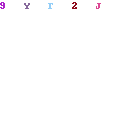
Font Bold checked: 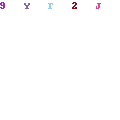
Italics checked: 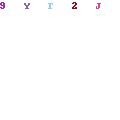
Control Properties
In order to design your form, a number of control types is available for you to select from.
At the time PowerForms is registered for a List or Document Library, the system automatically tries to detect list column types and selects the appropriate control for each column.
For example for single line of text columns the Textbox control is selected, for Lookup columns, the ComboBox control is added to the form and so on.
For columns that are not recognized (like custom column types) the TextBox controls is used by default.
PowerForms provides the maximum flexibility in designing forms, so for each list column, 2 separate controls are added on the form :
– The actual control holding the column data
– The label for that control (always a Label control)
These controls can be placed anywhere independently allowing users to achieve the desired result everytime.
Each control type has its unique characteristics but they all share some common attributes like :
– Name
– Binding
– Required
– Enabled
– etc.
These properties can be changed within the Properties Editor page which can be opened by clicking on the gear button at the bottom-right corner of each control inside the designer.

The properties window
You can setup control properties using the following property sections / tabs :
The most basic control properties are defined here.
Name
A unique name should be provided to each control. It is useful to identify controls in the designer as well as use that name in formulas or within script.
Type
Defines the type of the control. Depending on the column type, a lot of controls are available to display column data.
Multiline
For TextBox controls the Multiline property can be used in order to define that the control will accept multiple lines of text.
This only applies to the TextBox control as for Rich Text columns, the RichTextBox control can be used which by default supports multiple lines of text as well as rich content.
If the control type is different from TextBox, the Multiline property is unavailable.
Binding
For each control there are 3 different options on binding :
– The control is bound to a list column (option : The control saves its values in a list column)
This means that the control will try to show the value of the corresponding column and the value provided in that control will be used to save data for that column.
If the options is selected, the Column Name property must be supplied too.
– The control is a label for a bound control
This means that the control (usually a Label) is defined as the Label for a bound control.
These controls are created by the system.
– The control is unbound
This option indicates that the control will not display any value from the selected list item or save its value to a list column.
Instead, it can have a static value, display a value calculated from a formula, receive its value from a list query or a web service, etc.
This option can be selected in order to add static text to a label just to provide instructions to the users, retrieve and display a value relative to the form data and so on.
Enabled On New / Enabled On Edit
These options are used to disabled controls on when creating new or opening existing records.
If a control must be enabled all the time, these options should be both checked.
There are cases when a user should be able to enter a value for a list column only for new or only for existing records.
Example 1:
A user may select the customer for a sales order when adding a new record but is not allowed to change it afterwards.
In that case, the Enabled On Edit option should be unchecked providing the required result.
Example 2:
The title of a record should be automatically calculated (through a formula) when adding new records but the user may change that title when editing that record.
In that case the Enabled On New option should be unchecked and the value should be applied through a formula or script.
ReadOnly
This option only applies to some controls. When selected, it disabled input in that controls but allows users to copy the value.
If the control does not support the ReadOnly property, these controls are disabled.
For example the TextBox, LookupPikcer, MultiLookupPicker, TreeViewPicker, RichTextBox controls can be set to be ReadOnly.
Enabled Formula
There are cases when some controls should be enabled or not under certain conditions.
These conditions may depend on form data or user properties (like name, id or group).
The property should contain a valid formula that should evaluate to a boolean (true or false) value.
Example 1: (Checking control values)
The same result may be accomplished with the following formula :
This happens because the {control_name} keywords are replaced with the control values before evaluating formulas.
Example 2: (Checking user attributes)
or
UserID() = “3”
or
UserInGroupById(“12”)
or
UserFullName() = “Administrator”
Read more on formulas.
This tab contains the required properties to determine where the value of the control comes from.
By default, every control is set up to receive its value from the user (meaning that the end user will have to type/set the required value).
Exceptions:
– Label controls by default are set the have static values (since their value cannot be set by users)
– Buttons should have static value that represents the text inside the button control.
To define a static value for a control, select the “Value is static” option and type the corresponding value in the available textbox.
For controls with calculated values based on formulas, select the “Value is calculated by a formula” option and provide the formula.
Values in control can come from List Queries already defined in the List Queries section of the designer.
Each list query may retrieve more than one record (depending on criteria) and may have more than one field values retrieved.When setting a control to receive its value from a list query, the value of the first field of the first record retrieved is set to that control.
So users should be carefull when defining criteria for list queries in order to accomplish the expected results.
Similar to the List Query, a control may receive values from a web service call. The web service should be defined in the special section of the designer.
The last option is to define a uri (absolute) that will be called and the response will represent the value for the control.
For example, there may be a web page that accepts the ID of a customer and returns the balance. The following uri can be used. The {c_ID} key will be replaced with the run-time value of the referenced control.
Here you can define the layout properties of the control like Size, Color, Font, etc.
Details on how to use the layout properties can be found HERE.
This tab applies only to controls that lookup data in other lists like ComboBox, LookupPicker, AutoCompleteTextbox, MultiRadioButtons, MultiCheckBoxes, etc, as well as PeoplePickers.
Most of the controls in this tab are used by lookup controls.
The “PeopleOnly” and the “Specific Group(s)” properties are used for PeoplePicker controls.
In order to load data inside a lookup control from a list, you must fill in the following information :
First provide the Lookup Url. This should be the url of the site containing the list we want to query.
For example : http://server1/site1
Loosing focus from that control (i.e. by pressing the tab key), forces loading the lists of the specified site.
The lists are filled in the “Source List” combobox.
As soon as a list is selected from that combobox, the available views are loaded inside the “Source View” combo.
You can define additional criteria for your list query using the criteria editor. Details on setting up your criteria can be found HERE.
Constraints:
There are lookup controls that their values should be filtered using existing values from other controls on the same form.
Cascading lookups can be defined using the “Constraint By” – “Match To” properties.
“Constraint By” represents the column value that the system will use to query the target list.
“Match To” represents the column in the target list that will be queried using the “Constraint By” value.
Each control may have some extra properties that can be defined in the “Extra” tab to enhance control appearance and behaviour.
Details on the Extra Control Configuration can be found HERE.
Additional customization can be added on the behaviour of controls, using script.
Python script is supported in the Script tab where you can write the script that will be executed every time the control value is changed.
For this script, 2 variables are available to use :
“control” : Represents the actual control raising the Value Change event
“template” : Represents the parent form containing all form controls.
Available functions for controls and the form template can be found HERE.
Migrate Customization : Example
In this article we will follow the required steps to migrate our customizations to another server/site.
We will use the example site which can be created by the Installation Wizard of PowerForms.
Our site if located in the url : http://wssdev1/PowerForms Demo Site
We will save our site as a site template and use that template to create a new site (for our example the site will be created inside the same site collection, but the same methodology can be applied if the site is located elsewhere)
So we create the template including the content.
We then use that template to create a new site.
New URL = http://wssdev1/MyDemo
When opening the Order form from the new site we can see that no customization is available :
So we visit our original site and design the same form there :
We switch in the designer and press the “Migrate Customization” button.
We check the “Export List/View Names instead of IDs” and press OK. Then copy the xml and open our MigrationTool application.
We paste the XML and press “Process: to let the application identify existing lists.
Then we fill in the target site url and press “Migrate”. If not errors occur, the List IDs will be identified and then the user can press “Export” to retrieve the final XML which we can import in our final list.
NOTE : If any list ids or site urls exist inside the customization except lookup and list queries, the users will have to replace them manually.
Setting Column Span / Row Span for Controls
A newly added feature in Power Forms Designer allows the user to easily modify a control’s column / row span using the designer view. Using buttons placed on the control, the user can easily and effectively design the look of a control and subsequently, the entire form.

Hovering over a control causes four buttons to appear on the top right corner.  Each of these buttons represents the direction in which the user wants to expand or contract the size of the control. The only restriction set while modifying is that a control will always occupy at least one column and one row.
Pressing the right arrow increases the number of columns occupied by the control. Pressing the left button decreases the number of columns occupied by our control.

Saving our changes, the control’s appearance will be as follows:

Pressing the down arrow increases the number of rows occupied by the control, relative to the other controls residing on the form.

However, this will not increase the actual size of the control. To increase the size of the control, you still have to enter a value as height in the layout properties of the control.
For example, our form contains 5 labels occupying 5 rows on the left side of our form and one textbox occupying one row on the right side. Our goal is to have all 5 labels stacked on the left side of our textbox. The textbox is of height 100. The Form described looks like the following image:

Aesthetically, our form is in a state of disorderliness. To rectify the situation, we enter the form’s designer.

Pressing on the Down Arrow, increases the number of rows occupied by the Textbox.

Saving our changes, our form will now look like the picture below:
